Are you struggling with managing the partitions on your Windows 11 or Windows 10 computer? Do you want to optimize your disk space, create new partitions, or resize existing partitions without losing data? Look no further! In this article, we will introduce you to the best free disk partition software for Windows 11/10, which will make managing your disk a breeze.
What is Disk Partition Software?
Before we dive into the details, let’s first understand what disk partition software is all about. Disk partition software refers to specialized tools designed to manage partitions on various storage devices, such as hard disk drives, SSDs, external hard drives, memory cards, and USB flash drives. These tools provide a user-friendly interface through which you can create, delete, resize, merge, split, format, and perform other partition-related tasks.
Introducing DiskGenius: The Top-Ranking Disk Partition Manager Software
Among the various options available, DiskGenius stands out as one of the best disk partition manager software for Windows 11/10/8/7/Vista/XP. It offers a comprehensive set of features to meet all your partition management needs. Even though it is primarily a Windows partition manager, it also supports Linux file systems like Ext2, Ext3, and Ext4. DiskGenius has three editions, and its free edition includes almost all the functions you need for disk partitioning.
Let’s take a closer look at the main features of DiskGenius:
- Manage partition & disk: Create, delete, format, resize, extend, split, hide, and activate partitions. Allocate free disk space to a partition, assign drive letters, modify partition parameters, and more.
- Convert disk/partition without data loss: Convert primary/logical partitions, convert disk between GPT and MBR without losing data, convert dynamic disk to basic, and convert virtual disk formats.
- Data backup utilities: Clone disk/partition, image disk/partition, back up partition tables, clone HDD to SSD, and more.
- Disk utilities: Check and repair bad sectors, edit hex data, wipe hard drives and partitions, permanently delete files, view S.M.A.R.T. information, create Win-PE based bootable USB disks, and more.
- Data recovery: Recover deleted/lost/formatted files, recover lost partitions, recover RAW drives, perform RAID data recovery, and even recover BitLocker-encrypted data.
- Supported devices: Hard drives, external hard drives, USB flash drives, SSDs, memory cards, pen drives, virtual disks, Windows Storage Spaces, RAID disks, dynamic disks, and more.
- Supported file systems: FAT32, FAT16, FAT12, exFAT, FeFS, NTFS, EXT2, EXT3, and EXT4.
- Supported OS: Windows 11/10/8.1/8/7/Vista/XP & Server 2022/2019/2016/2012/2008/2003.
With DiskGenius, you can effortlessly manage your partitions and disks, perform backup and recovery tasks, and optimize your storage utilization. It is a must-have tool for anyone seeking to maintain a well-organized and high-performing computer system.
A Guide to Common Disk and Partition Management Operations
Now that you are familiar with DiskGenius, let’s explore some common operations you can perform to manage your partitions effectively. Whether you need to repartition a hard drive, resize a partition without losing data, allocate free space to an existing partition, create and format an Ext4 partition, or format a large SD card to FAT32, we’ve got you covered.
Guide #1: Partition/Repartition a Hard Drive
If you want to repartition a hard drive or flash drive into multiple partitions using DiskGenius, follow these simple steps:
- Launch DiskGenius and select the disk you want to repartition.
- Click the “Quick Partition” button from the toolbar, and the Quick Partition window will open.
- Customize the partition table style, partition count, partition size, file system type, and other settings based on your needs. If you’re unsure, you can stick with the default settings.
- Click the OK button to start partitioning the selected disk.
Note: If you want to repartition the hard drive where the operating system is located, you need to boot into WinPE to complete the task. DiskGenius supports creating a Win-PE based bootable disk to help you with this.
Guide #2: Resize Partition without Losing Data
To resize a partition without losing data, especially when facing low disk space issues, DiskGenius offers a powerful solution. Here’s how to do it:
- Right-click on the partition you want to resize and select “Resize Partition”.
- Set the amount of disk space you want to move and select the partition to which you want to merge the space.
- Click the Start button to begin the operation.
DiskGenius allows you to shrink or extend partitions without data loss, ensuring that you make the best use of your disk space.
Guide #3: Allocate Free Space to an Existing Partition
If you have unallocated/free disk space and want to add it to an existing partition without formatting the hard drive, follow these steps:
- Launch DiskGenius and locate the free space.
- Right-click on the free space and choose “Allocate Free Space To”.
- Select the partition to which you want to add the space.
DiskGenius will seamlessly move the disk space to the specified partition without any data loss.
Guide #4: Create and Format Ext4/3/2 Partition
Windows does not natively support the EXT4 file system used by Linux. If you want to create, format, read, write, or access an EXT4 partition on Windows 11/10/8/7, follow these steps using DiskGenius:
- Select the free disk space in DiskGenius.
- Click the “New Partition” button in the toolbar area.
- Choose the partition type and select EXT4 (Linux Data) as the file system. Click OK.
- Click the “Save All” button to save the EXT4 partition to the current partition table.
- When asked whether to format the partition, click Yes to quickly format it.
You can either create a new partition or format an existing partition to the EXT4 file system, depending on your needs.
Guide #5: Format a 64GB or Larger SD Card to FAT32
When formatting a partition larger than 32 GB in Windows, the default options are usually NTFS or exFAT. However, if you specifically want to use the FAT32 file system for an SD card or external hard drive larger than 32 GB, follow these steps:
- Connect the SD card to your computer and open DiskGenius.
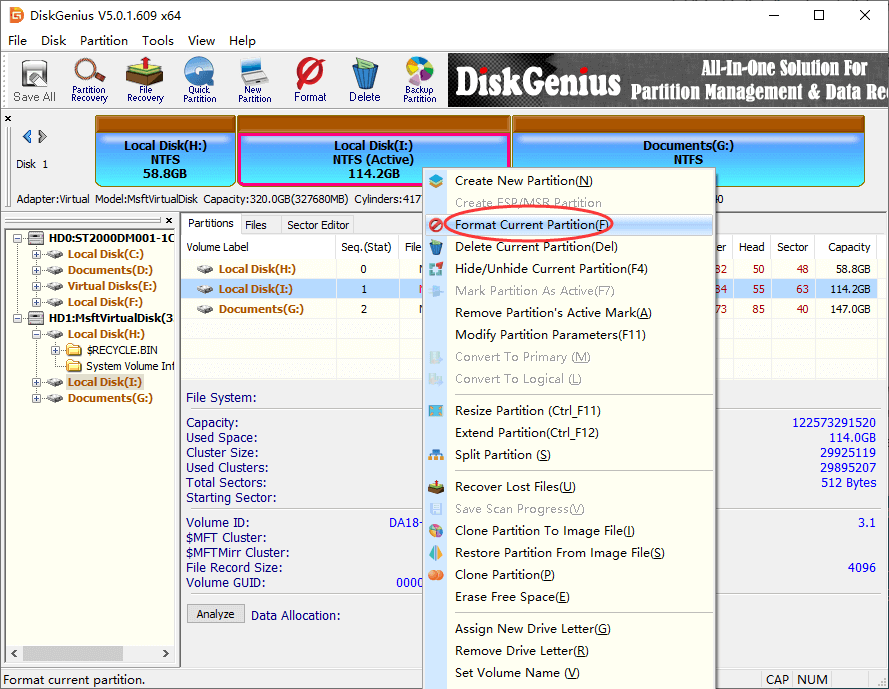
- Right-click on the partition to be formatted and choose “Format Current Partition” from the context menu.
- Select FAT32 as the file system and click the “Format” button.
- Confirm the action and start the formatting process.
By following these steps, you can format your SD card to FAT32 and ensure compatibility with a wide range of devices.
Conclusion: Simplify Your Disk Management with DiskGenius
To sum it up, disk partition software plays a crucial role in managing your disk and partitions effectively. With DiskGenius, you can easily perform a wide range of partition-related tasks, optimize your disk space utilization, and maintain a well-organized computer system. DiskGenius is a versatile and feature-rich partition manager software that is suitable for both beginners and advanced users.
Don’t wait any longer! Download DiskGenius now and take control of your partitions and disks like a pro.
Disk Partition Manager Software FAQs
-
What is the best disk partitioning software?
Determining the best disk partitioning software depends on various factors, such as user preferences, specific requirements, and the operating system you are using. Among the top choices are Windows Disk Management, Diskpart commands, DiskGenius, and GParted. -
Is partition manager free?
The availability of free versions of partition managers varies among different software. While some offer free versions with limited features, others provide entirely free and open-source options. DiskGenius offers a Free edition with sufficient features for both beginners and advanced users. -
How to partition a 1TB hard drive?
To partition a 1TB hard drive, you can use either the built-in disk management tools in your operating system or third-party partition software. Steps involve connecting the hard drive, selecting it, and using the available tools to create partitions according to your needs. -
Is there a free version of Partition Magic?
No, Partition Magic does not have a free version. The software was discontinued, and its development ceased many years ago. However, there are alternative partition management software options available, such as DiskGenius Free Edition. -
How do I create a partition in Windows 10 for free?
To create a partition in Windows 10 for free, you can use the built-in Disk Management tool or third-party partition software. Simply right-click on the unallocated space on your hard drive, choose “New Simple Volume,” and follow the on-screen instructions to create and format the partition.